AI Assistance
The editor’s footer has an AI input with a provider picker. Five options:
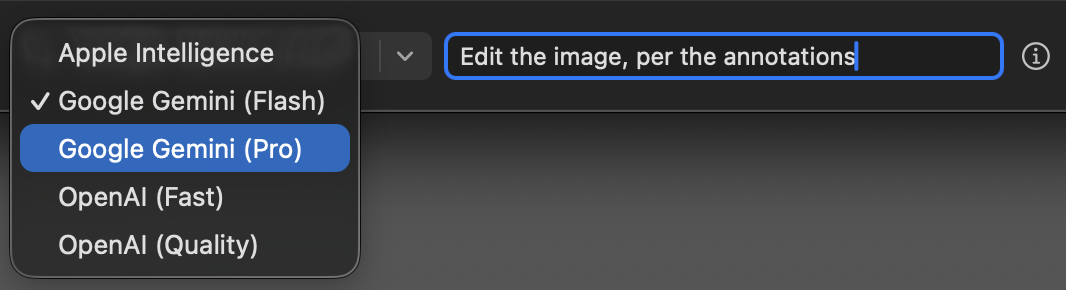
| Apple Intelligence | On-device (macOS 26+, Apple silicon). No data leaves your Mac. Must be enabled in System Settings → Apple Intelligence & Siri. |
| Google Gemini | Cloud, requires an API key (Settings). Image edits use gemini-3.1-flash-image (Nano Banana 2) — fast, good for iteration. |
| Google Gemini (Pro) | Same key, image edits use gemini-3-pro-image (Nano Banana Pro) — better for complex edits (higher cost and latency). |
| OpenAI (Fast) | Cloud, requires an API key (Settings). Image edits use gpt-image-2.5-flare — extremely fast and responsive. |
| OpenAI (Quality) | Same key, image edits use gpt-image-2.5-sunburst — best for intricate or high-fidelity edits (higher cost and latency). |
How prompts are routed
Every prompt is first run through a small intent classifier that picks one of three modes: question, image edit, or annotation edit.
Apple Intelligence classifies on-device. With cloud providers (Gemini or OpenAI), this is a separate, text-only call to a classification model. So, each user prompt triggers two API calls — one tiny and one “real”.
The response panel narrates the decision. If a prompt gets misclassified, rephrase toward the verb — “draw a box around…” routes to annotations, “remove / replace / recolor…” to image editing.
With cloud providers, your prompts and responses form a running conversation, so you can build on earlier context (“replace the sky with a sunset” → “now make it warmer”). Each editor keeps up to ~10 prior turns. To start fresh, click Clear Session in the panel; switching providers (or tiers) resets it as well.
Ask questions
Apple Intelligence reads the image through OCR (precise about text, less about pictures).
| Read text | “What text is in the second paragraph?” |
| Find things | “Find and sum up all the dollar values” |
Cloud models see the actual pixels, so you can try asking about anything.
| Read text | “What does the highlighted text say?” |
| Extract info | “What fonts and colors are used here?” |
| Summarize | “Summarize what this dialog is asking” |
Edit the image
What “edit” means depends on the provider: Apple Intelligence applies whole-image filters on-device; Gemini and OpenAI do generative edits — replacing, removing, and restyling content.
In all cases, the response panel tells you what took place, and the whole edit is one undo step.
With Apple Intelligence
Basic adjustments, applied on-device through Core Image:
| Sharpen | “Sharpen the details.” |
| Brightness | “Brighten this by 20%.” |
| Contrast | “Bump the contrast significantly.” |
| Blur | “Add a slight blur.” |
These are image-wide filters, not generative edits — no targeted fine-tuning, content additions, or object removal. For those, use Gemini or OpenAI.
With Gemini and OpenAI
There are two ways to direct an edit:
1. Plain prompts — describe the change in words:
| Replace | “Replace the sky with a sunset”. |
| Stylize | “Make it look like a watercolor”. |
| Remove | “Remove the person in the background”. |
2. BETTER: Annotation-guided — annotate the canvas first (text notes, arrows, shapes/overlays), then tell the model to follow the markup:
| Follow markup | “Apply image edits per the annotations”. |
| Targeted remove | “Remove everything inside the red box”. |
| Targeted edits | “Replace the circled area with grass”. |
PowerPic’s killer features:
- Visible annotations are sent alongside the active image as a separate image layer; not baked in.
- PowerPic also describes each annotation in words and coordinates, so the model is told about the markup, not just shown it.
- Pasted image overlays are sent along separately, at full resolution, for extra detail.
Tip — point with arrows. When asking for edits, use arrows for better specificity. PowerPic reads that as “‹your note› → this region” and passes it to the model. For better associations, bind the arrows to the text and to any rectangles/ovals specifying the target area.
Tip — group text with reference images. When text markup is grouped with one or more image overlays and the group is pointed at a desired target area via an arrow, the transcription will associate them together, resulting in a more precise prompt.
AI Inpainting Masks (currently OpenAI only) — Right-click any annotation and choose Set/Clear AI inpainting mask. When set, it clearly defines a permitted edit region, to ensure the rest remains untouched. Your prompt or markup then describes what to generate inside the masked area(s).
As soon as the first mask is set, the app enters mask layer preview mode — you can toggle the layer on/off using the footer’s checkerboard button. Similarly to the annotation toggle, the mask layer must be visible to be sent to the model.
Marking an annotation as a mask is additive — the shape is still sent through the normal markup layer and transcription, per above. Currently, only OpenAI receives it as an additional pixel-editing boundary; Gemini has no mask support yet — a masked shape behaves exactly like a regular annotation.
Output size — Cloud models render at their own native resolutions and can’t produce exact pixel dimensions. PowerPic handles this for you:
- Normal edits come back resampled to your image’s original size, as long as the result is within 20% of the original and the aspect ratio holds.
- If you ask to upscale / enhance, or change the aspect ratio (“make it 16:9”), the new result is kept (and your annotations scale to match).
- For exact dimensions, finish with Edit Image → Resize.
AI Result layers
Each AI image edit produces a new layer. Once you have at least one result, a thumbnail switcher appears at the footer’s left edge — use it to jump back to the original or any earlier iteration.
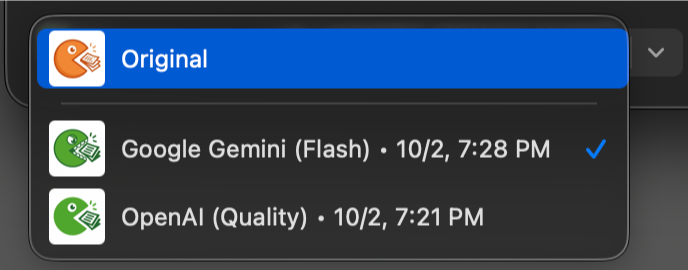
Image edits are applied to the active layer; cropping and resizing, however, affects all layers since it changes the canvas.
Transparency Alpha masks
Cloud models can’t return real transparency — ask for a “transparent background” and you’ll get a literal checkerboard baked into opaque pixels instead. The workaround: ask AI for a clean grayscale mask instead (white = keep, black = remove), then “merge it in”.
- Prompt for a mask — “Generate black and white alpha mask of the person.” The result arrives as a new active image layer.
- Right-click anywhere on the image and choose Apply as alpha mask to…, then pick which layer.
- The selected target is updated in place with real transparency, revealing your blank canvas color beneath; it can now be exported as a genuine transparent PNG. (The mask layer itself is left untouched).
Going the other way — When an image layer has an alpha transparency, a small badge appears next to the layer switcher. To extract the mask into its own layer, click the alpha badge. Once extracted, you can send it to AI for modifications, then merge it back into its original layer for export.
Draw annotations
| Mark one thing | “Circle the lightbulb”, “box the title text” |
| Mark many things | “Draw rectangles around every button” |
| Modify / remove | “Make the red box blue”, “delete the arrow” |
Shapes use your current toolbar style unless the prompt says otherwise. Each prompt request is a single Undo step. Gemini can batch mixed operations (create + delete + restyle) from one prompt.
Annotation drawing is still fairly limited and experimental.
Input tips
- ↑ / ↓ recall previous prompts; Return submits; Esc closes the panel.
- The ⓘ button shows provider-specific tips (click again to dismiss).